How to Install Windows Server 2016 on Proxmox

Creating Windows Server 2016 VM on Proxmox
This is fourth article in the series that will end with a proper install of SAP B1 10 on SAP HANA 2.0. The first article was on how to setup a new dedicated Hetzner Server as a base. The second article was on how to install Proxmox on Hetzner server. Third article was on how to install SUSE 15 SP1
In this article we will see how to setup Windows Server 2016 VM on the Promox that we setup earlier. You can skip this is you already have a proper working Windows Server 2016 setup in place.
VM requirements
Depending on your requirements you may allocate different set of resources to the Windows VM for the purposes of this article we are using the VM with following specs:
| Device | Min Requiremetns | Our Setup |
|---|---|---|
| RAM | 512 MB | 16GB |
| HDD | 32GB | 200GB |
| CPU Cores | 1 | 4 |
Based on the above specs, we create a new VM using the steps similar to those listed in the SUSE Setup Article.
Make sure to get the latest release of Windows Server 2016 from the Microsoft Evaluation Center which you can then activate using your License key.
Install Process

- While creating the VM, make sure to choose the right ISO image and also
Microsoft Windowsas Guest OS Type, with10/2016/2019as Guest OS Version
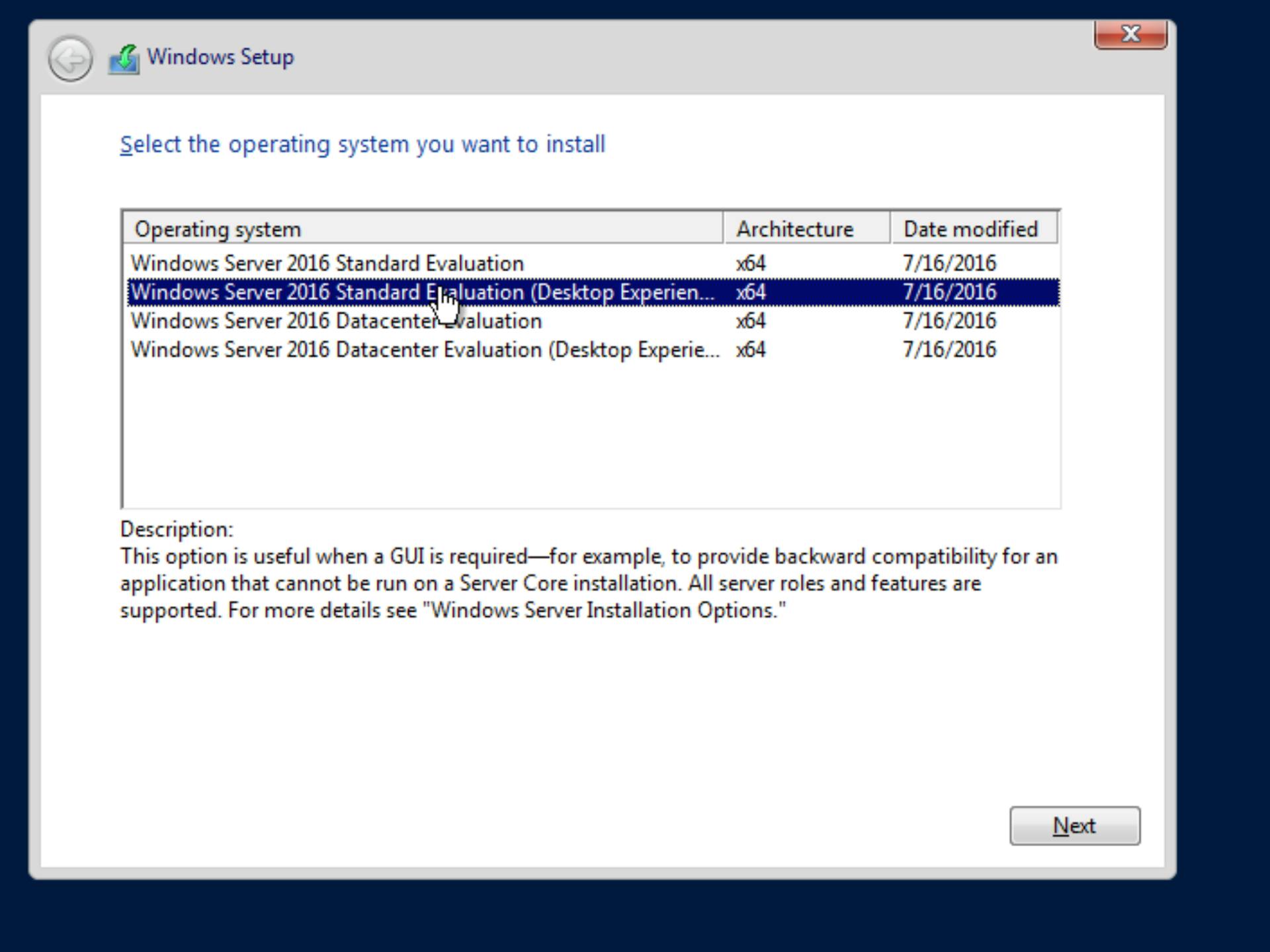
- Select
Windows Server 2016 Standard (Desktop Experience)version to install
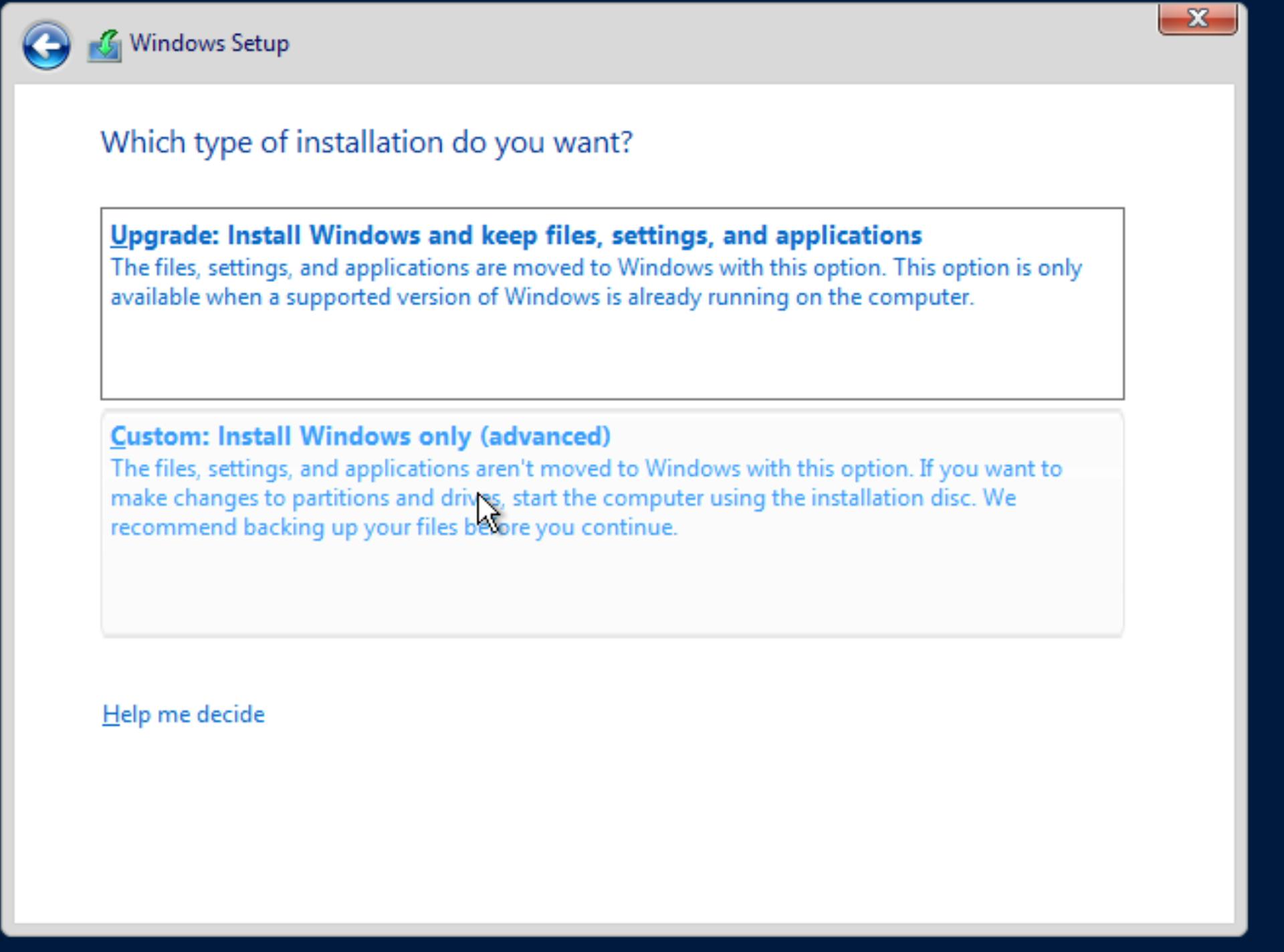
- Choose
Custominstall

- HDD Select step

- Once Windows Server is installed and has rebooted, you can login by clicking the bottom right button in the
noVNCscreen of Proxmox
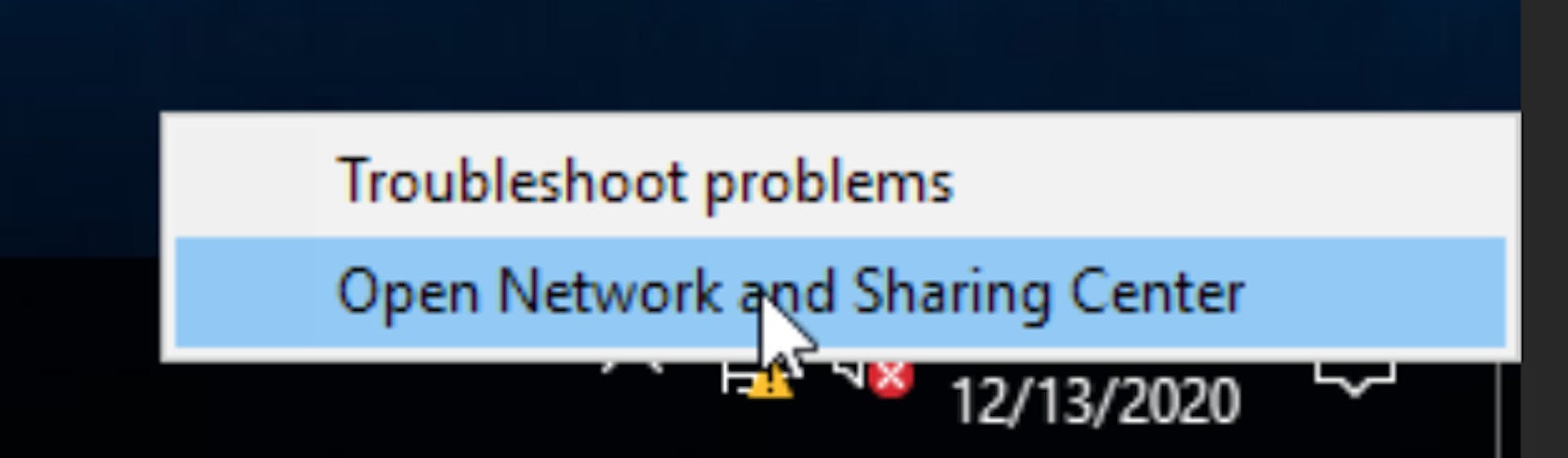
- After login you will see that the Network is not working. If that is the case, right click on the network tray icon, and select
Open Network and Sharing Center
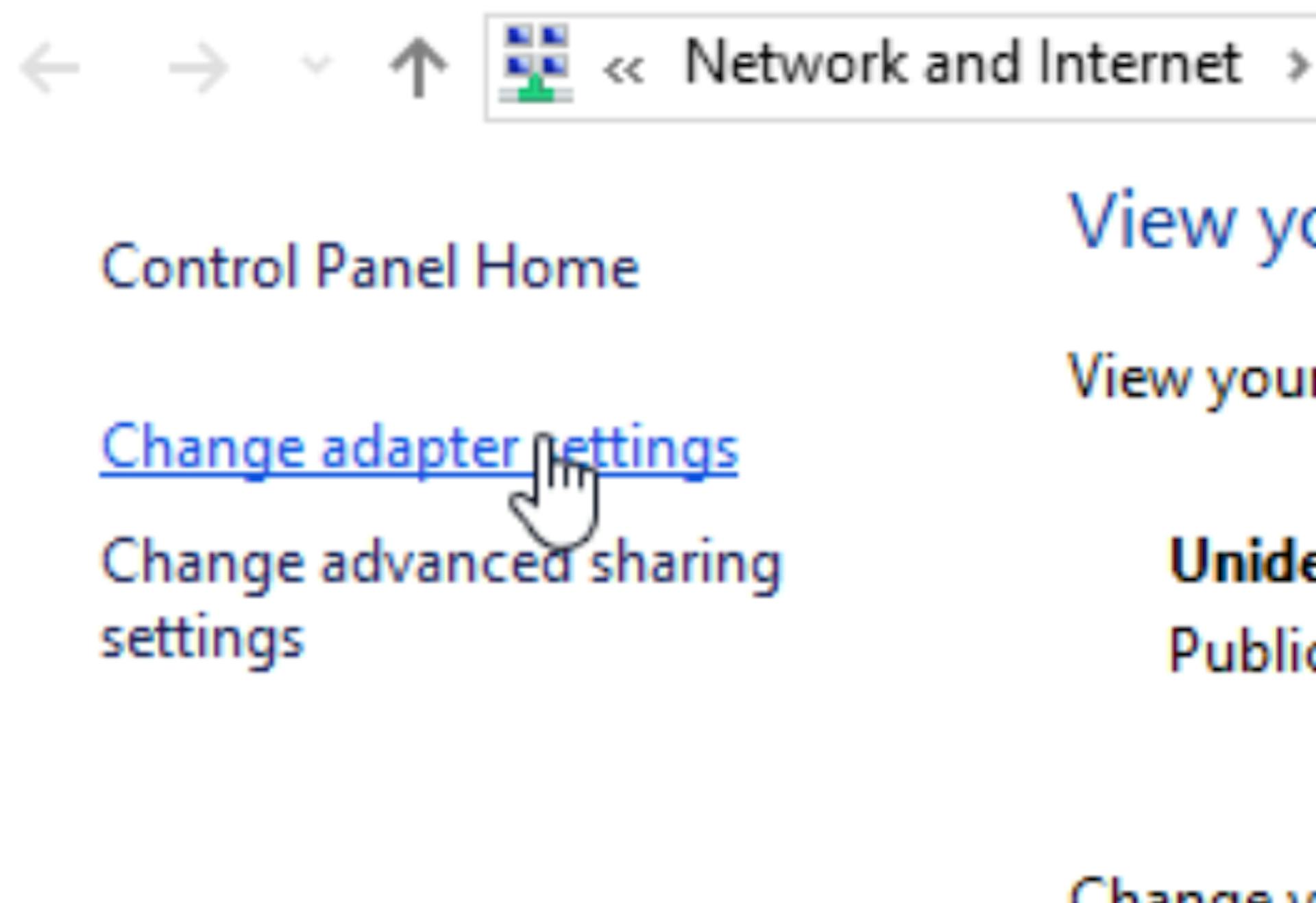
- Select
Change adapter settings
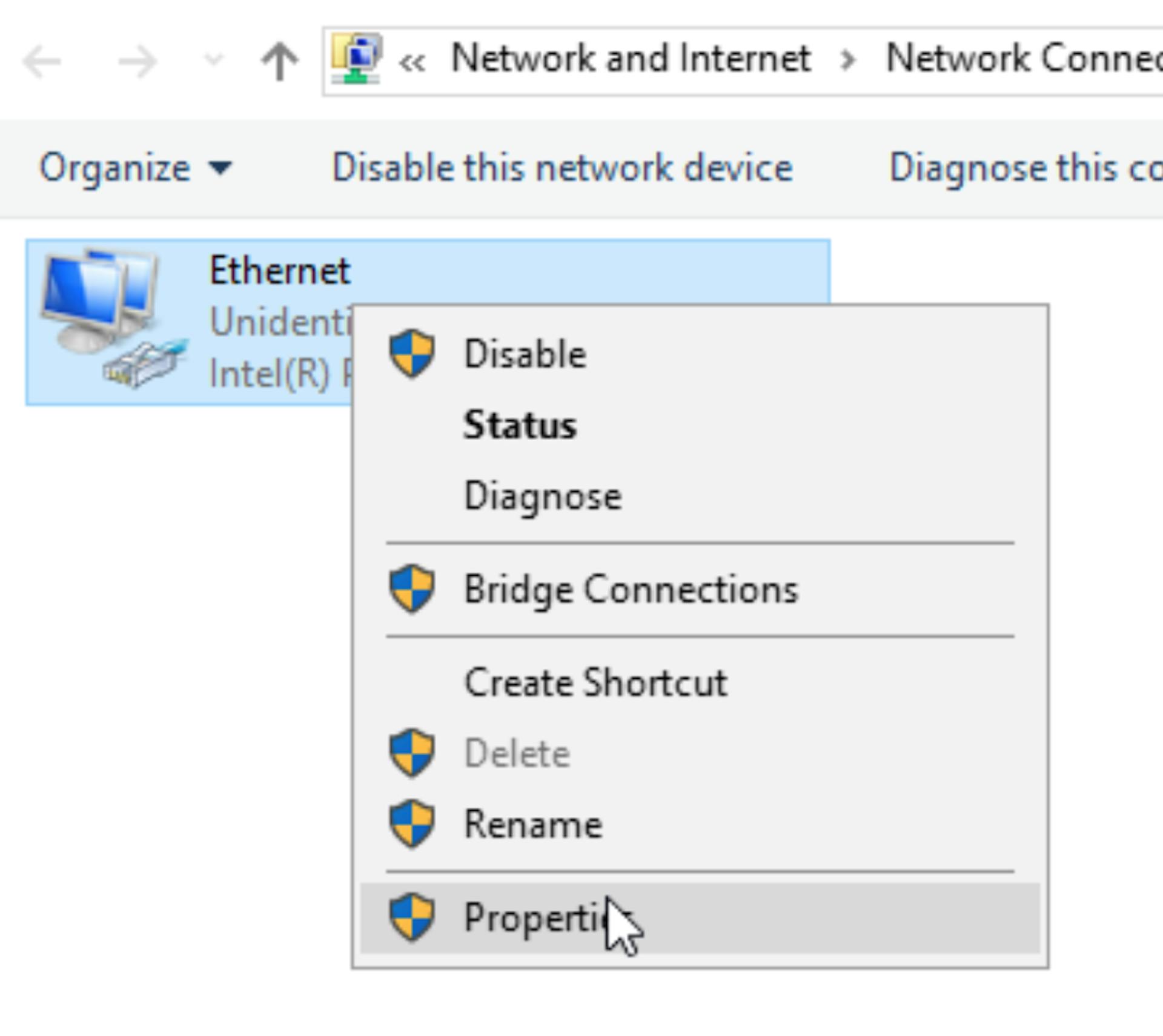
- Changing Adapter settings
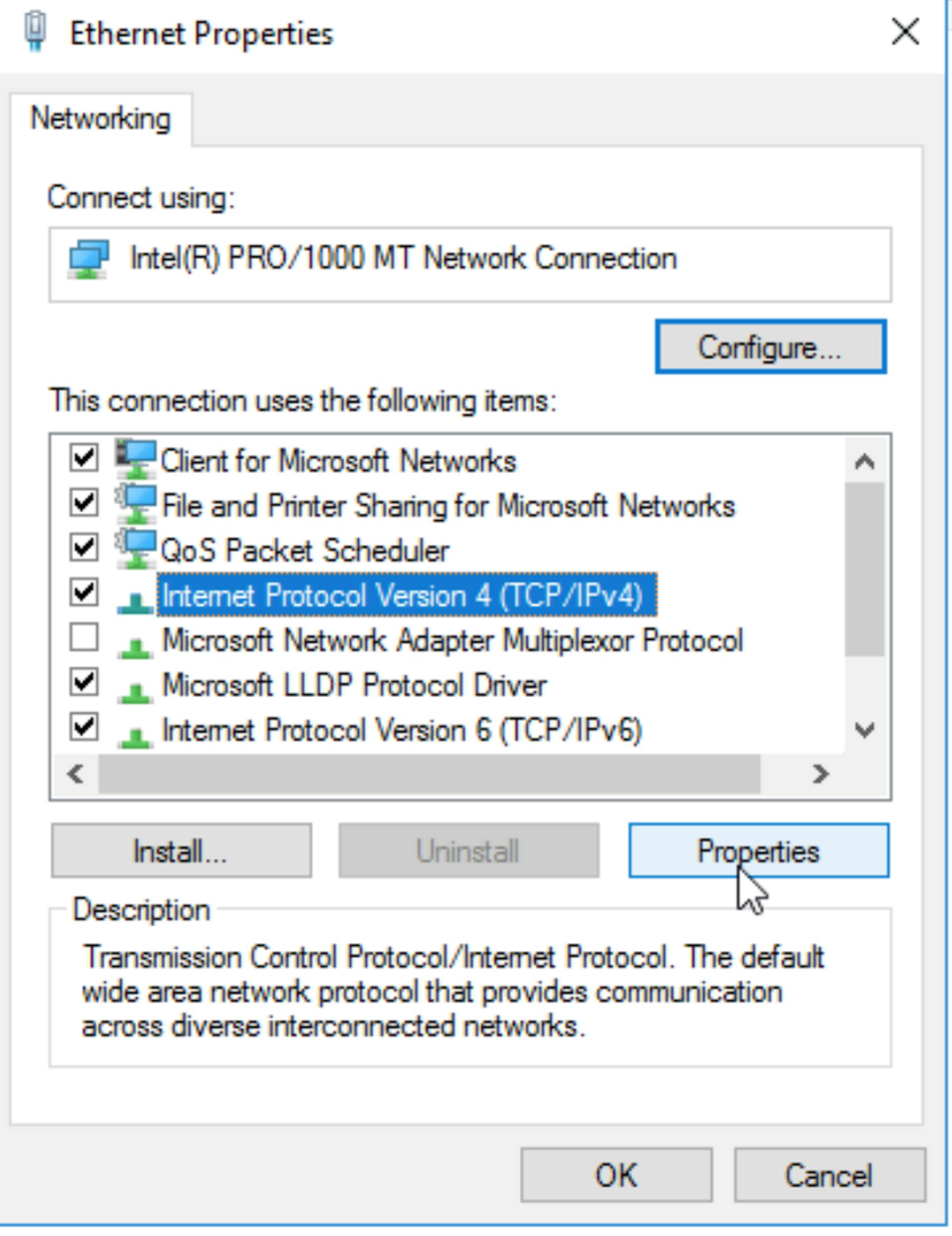
- Change
IPv4 properties
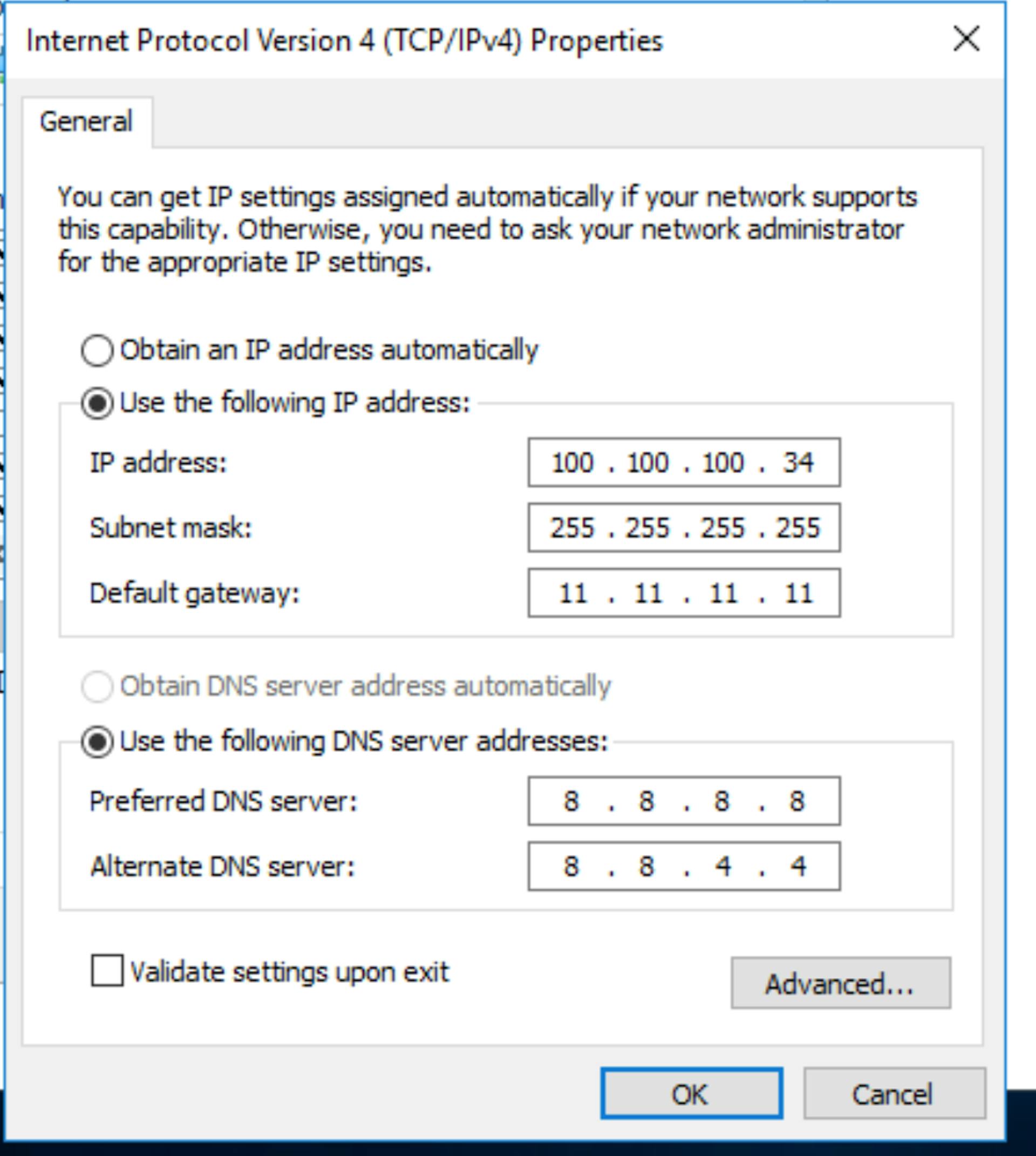
- For the properties:
IP Address: free IP address from the additional subnet,
100.100.100.34in this case Netmask:255.255.255.255Gateway: Your main IP address,11.11.11.11in this case Primary DNS:8.8.8.8Secondary DNS:8.8.4.4
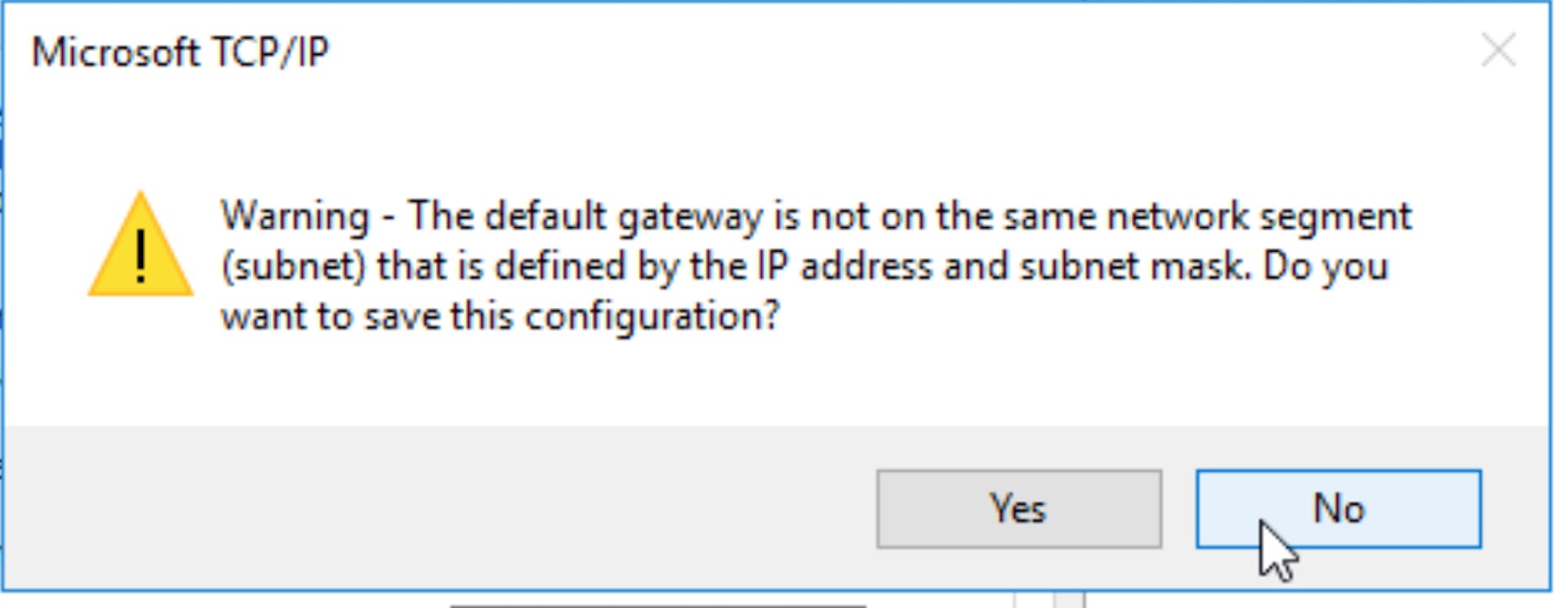
Warning shown when you try to save the network settings. This can be ignored and you can press
YesWait few minutes, and then Network get enabled
Post installation steps
First make sure to update Windows Sever and then you can install some useful software to help you further, like:
Chrome
WinSCP
Firewall/Antivirus
Enable Remote Desktop
You can use console of Proxmox for all the GUI related tasks, but for better control, you might find connecting to the server using RemoteDesktop a lot better. Out of the box, after install, Remote Desktop is disabled. You can enable by following the steps below:
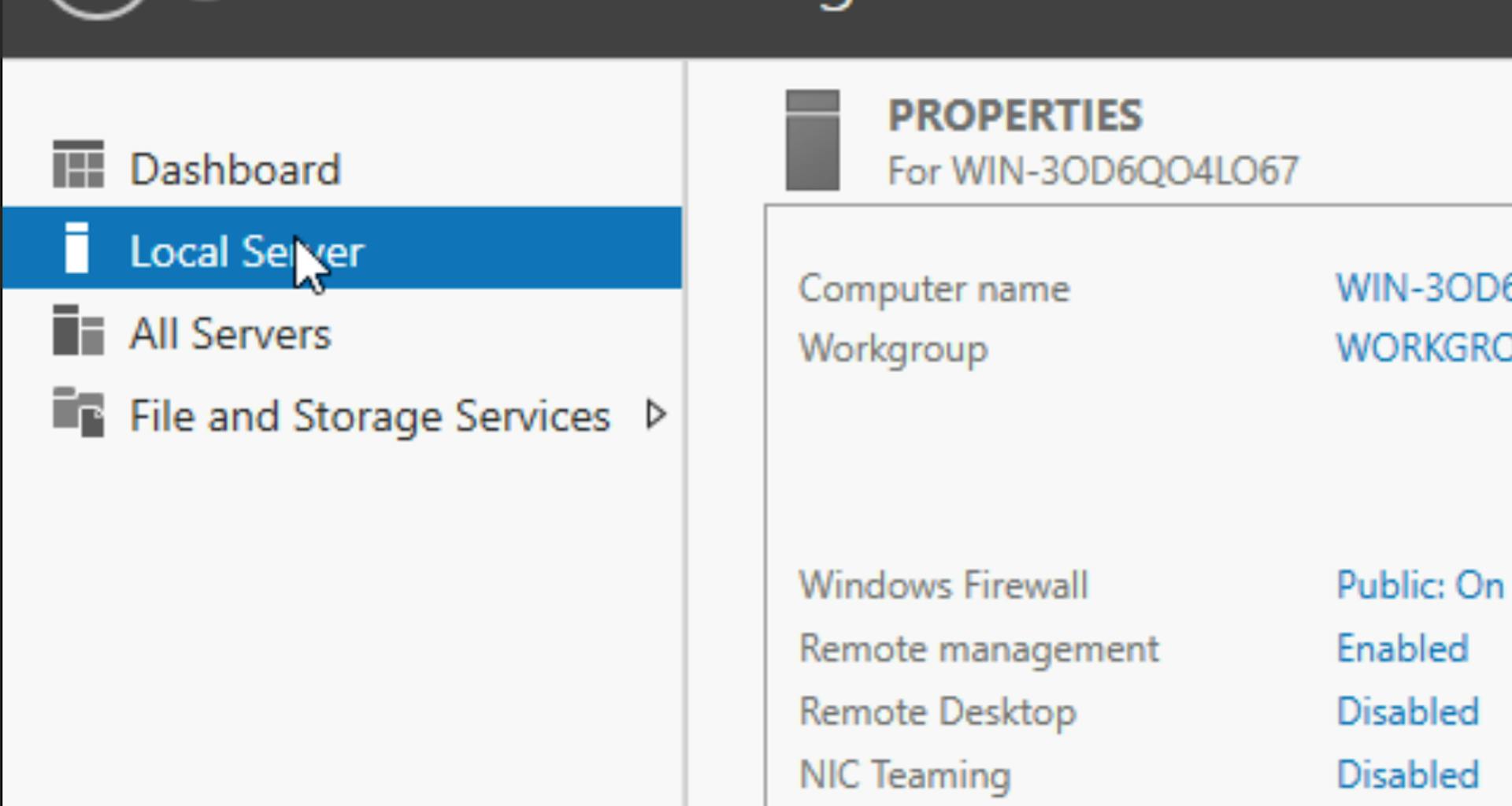
- Open
Server Manager, click onLocal Server, on the right you will see that it showsRemote Desktopas disabled. Click onDisabledto the right ofRemote Desktop.
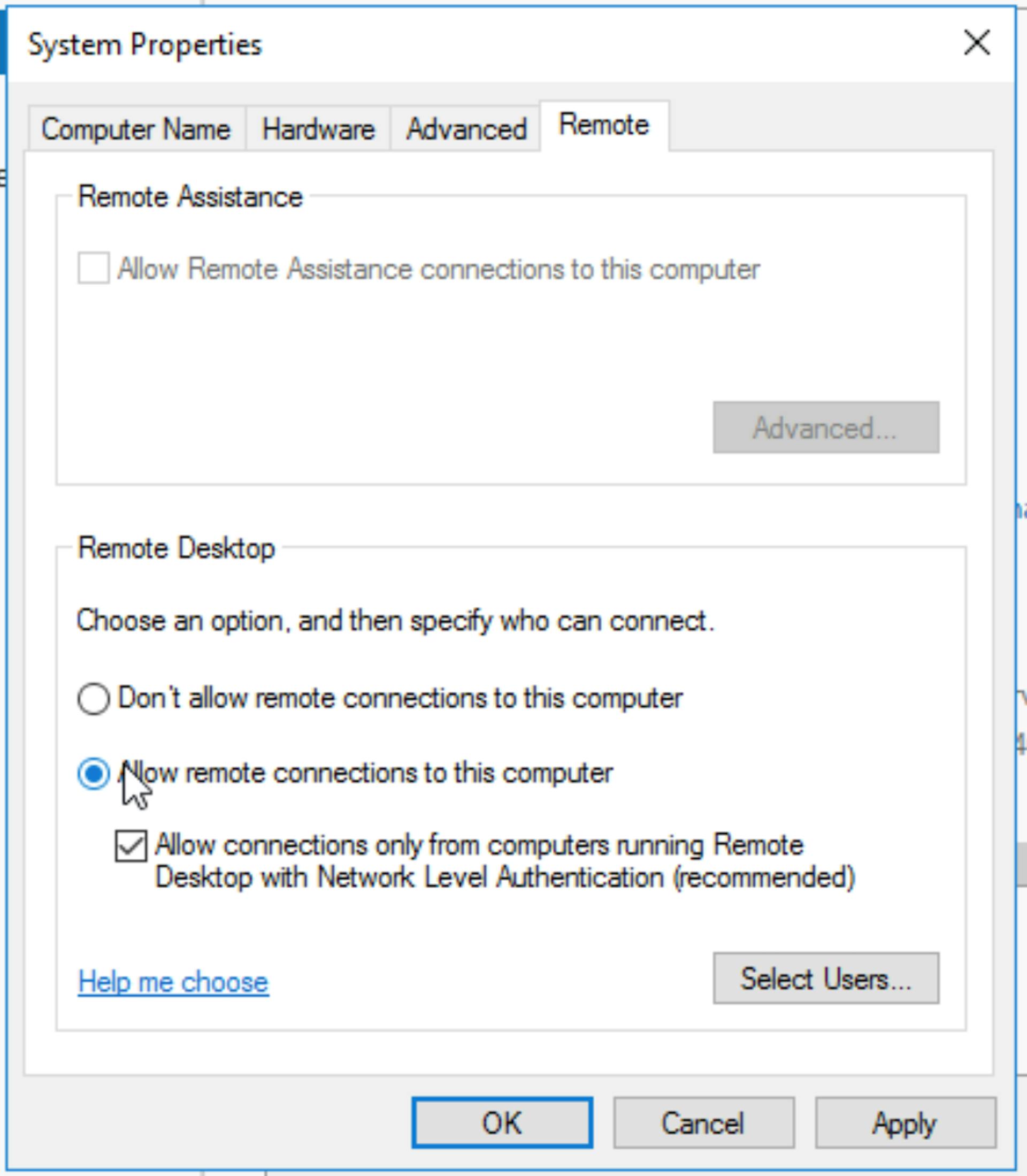
- On the popup that opens, click on the
Allow remote connections to this computer, and pressApply
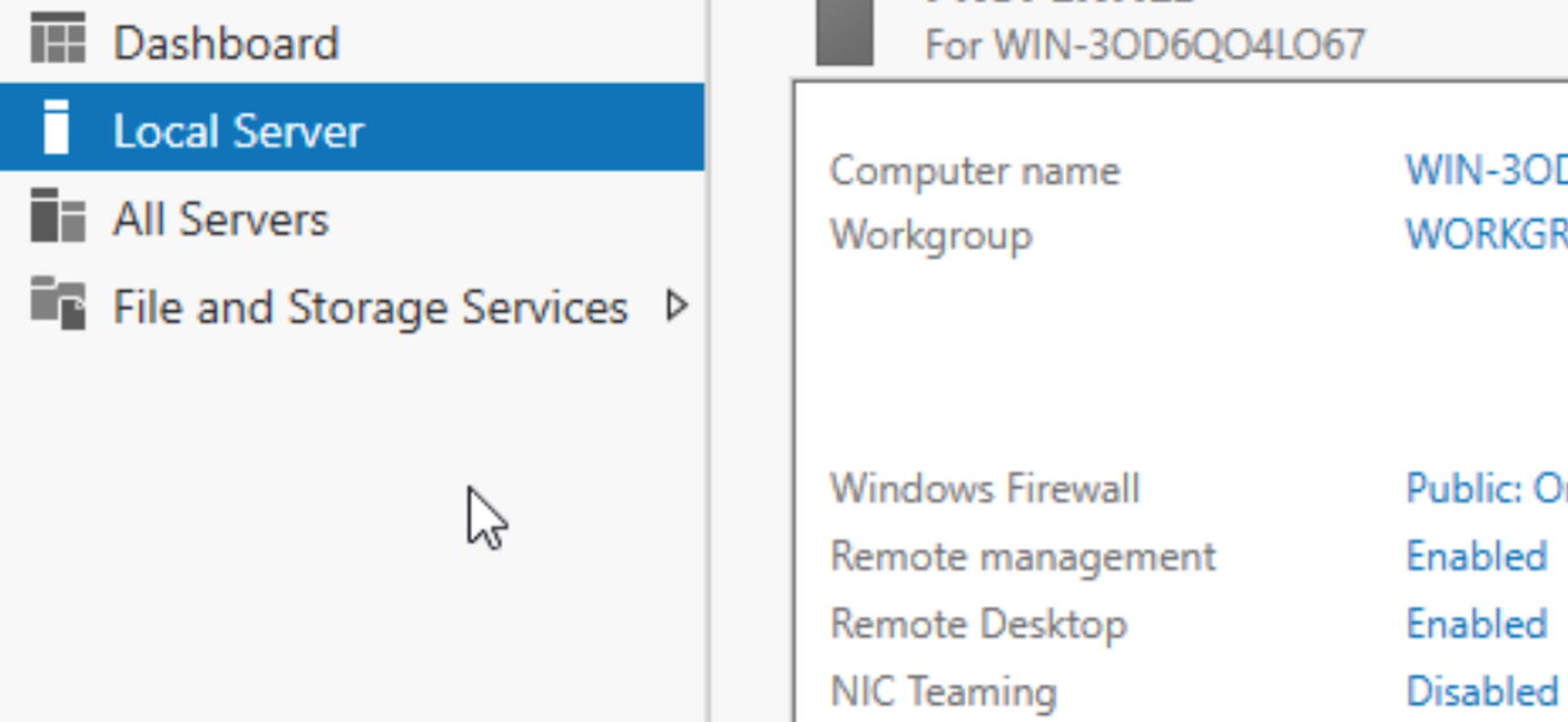
- This is how it looks like with the
Remote Desktopis enabled
Antivirus
For extra safety, make sure to install a good antivirus on your server.